Add-in Introduction
Hello World Introduction to using the Whoa Excel Addin
This section assumes you have installed the add-in.
The applications you create reside within Macro Enabled Excel workbooks, referred to as Host Workbooks.
Creating a Host Workbook
Open Excel and click on the new Whoa option within the Excel Ribbon. Most addin buttons are disabled until an open Host Workbook is detected.
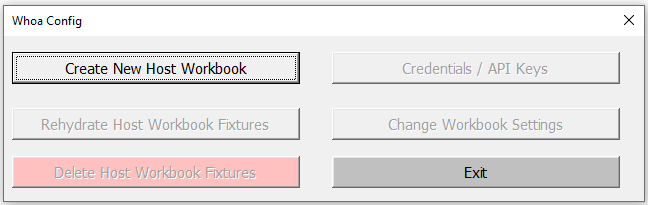
- Click the Create New Host Workbook button in the form that opened:
- Close out of Excel completely
- Open the new Host Workbook you just created
Touring new Host Workbook.
Addin Ribbon
Notice the Ribbon buttons are enabled now that a Host Workbook open:

- Hover your mouse over an icon to read a tooltip.
Ribbon notes:
- The icons on the left side correlate with the addin's core technical verticals
- The icons on the right side correspond with smaller utility functions.
-
The Home button will navigate you to the worksheet named "home". If such a sheet does not exist, a default one will be created.
-
Click the Models icon to open the Models ListView
Models ListView
This form lists the models defined within the Application. Host workbooks come preloaded with three System Models, which will be visible in the form:
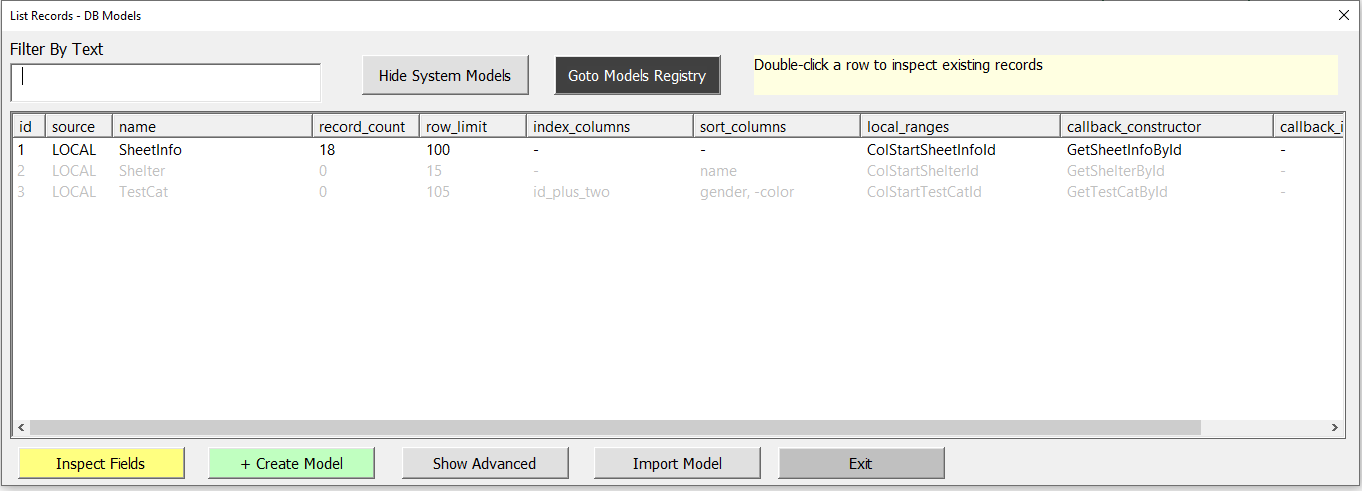
The TestCat, Shelter, and SheetInfo models are used for testing and quality control. We use these to experiment during this tutorial.
- First single-click the TestCat row in the ListView to select it
- Then click the bright yellow Inspect Fields button, located below the ListView, to open the Model Fields ListView form.
Model Fields ListView
This form lists all of Fields defined for one model.
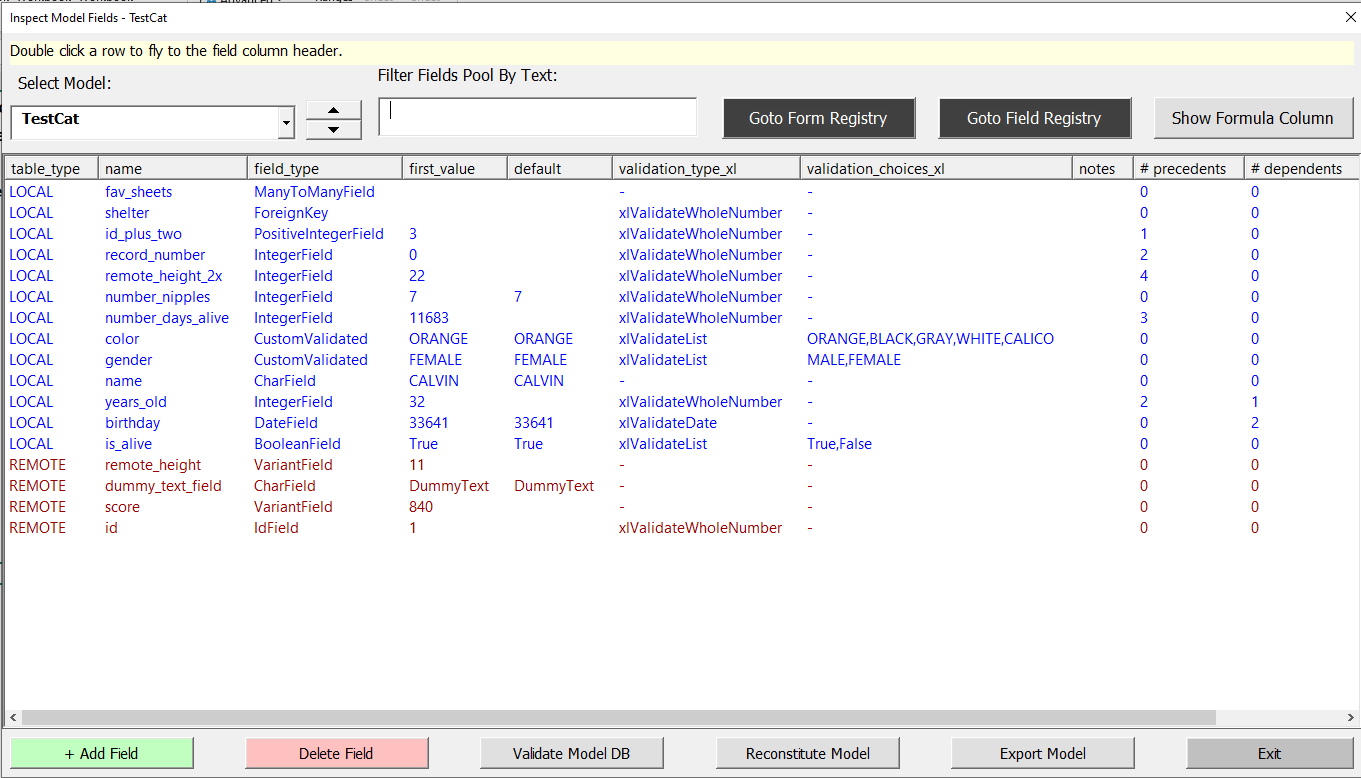
- Read the column names in the table